DECO1400 Lecture 3
DECO1400 Lecture 3
Personas
- Personas are about creating products with a specific, not generic user in mind
- Personas are fictional characters, which you create based upon your research to represent the different user types that might use your website/service/product in a similar way
- It describes what motivates the user, why they are using your website/product and what they are trying to accomplish
- Helps us think of users as real people
- Usually, a persona is presented in a 1-2 page document
- Include behaviour patterns, goals, skills, attitudes and background information as well as the environment in which a persona operates.
Why are Personas Important?
- A deep understanding of a target audience is fundamental to creating exceptional products
- User personas help a product team find the answer to one of their most important questions, “Who are we designing for?”
- By understanding the expectations, concerns and motivations of target users, it’s possible to design a product that will satisfy users’ needs and therefore be successful
Benefits of Personas in UX Design
Build Empathy: Personas help designers create understanding and empathy with the end-users. Thanks to personas, designers can:- Gain a perspective similar to the user. Creating user personas can help designers to step out of themselves and recognise that different people have different needs and expectations
- Identify with the user they are designing for
Provide Direction for making design decisionsUser personas help designers shape product strategy and accompany during the usability testing sessions- A deep understanding of user behaviour and needs makes it possible to define who a product is being created for, and what is necessary or unnecessary for them from a user-centred point of view.
- This allows product teams to prioritise feature requests (for example, features could be prioritised based on how well they address the needs of a primary persona)
- They can also help settle arguments around design decisions - instead of saying, “I think the send button is too small”, a designer might say, “Since our primary persona, Carolyn always uses a mobile device on the go, we need to design better tap targets in our app to minimise the interaction cost”
Communicate Research FindingsMost designers work in multidisciplinary teams that have members with varying expertise, experience and points of view- All team members should be on the same page in terms of design decisions
- Person,as encapsulate the most critical information about users in a way that all team members and stakeholders can understand and relate to
The sum of efforts, both mental and physical that users must deploy in interacting with a site in order to reach their goals ((NNGroup.com)[https://www.nngroup.com/articles/interaction-cost-definition/])
Characteristics of a Good Persona
- Personas aren’t fictional guesses at what a target user thinks. Every aspect of a persona’s description should be tied back to real data (observed and researched).
- Personas reflect real user patterns, not different user roles. Personas aren’t a reflection of roles within a system.
- A persona focuses on the current state (how users interact with a product), not the future (how users will interact with a product).
- A persona is context-specific (it’s focused on the behaviors and goals related to the specific domain of a product)
Creating User Personas in the Design Process
Designers often start creating personas during the second phase of development, the Define phase.
- Empathise
- Define
- Ideate
- Prototype
- Test
- Implement More information at nngroup.com
- When creating a user persona template, you should include the following information:
- Persona name photo
- Demographics (gender, age, location, marital status, family)
- Goals and needs
- Frustrations (or “pain points”)
- Behaviours
- Bits of personality (e.g. a quote or slogan that captures their personality)
- Every aspect of the persona should be tied back to real data (observed and/or researched)
How to Collect Information
- Important to gather information during persona creation and later validation phases by testing assumptions with real users:
- User interviews
- Focus groups: Moderated group discussion
- Questionnaires/surveys: cheaper and easier to distribute
- Think-aloud protocol
- Creating personas is optional for your design assessment.
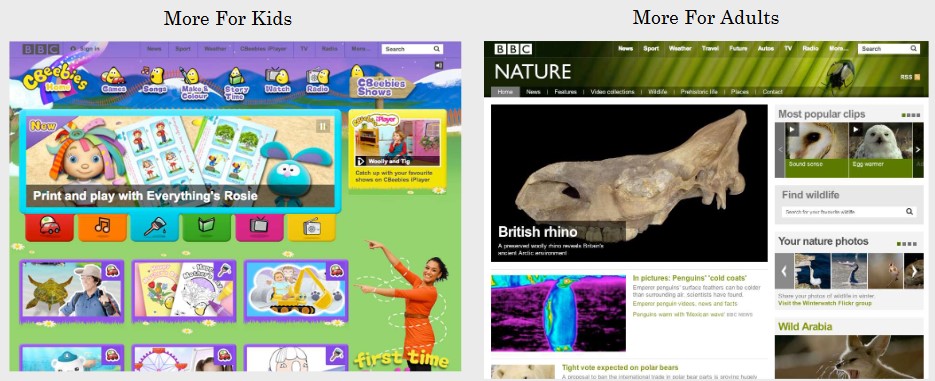 Figure 1 - The design of an interface changes depending on the target demographic (left) interface for children (right) interface for adults.
CSS Basics
- Styles define how to display HTML elements
- It styles the HTML markup
- Poorly formed HTML == poorly presented content
CSSCascading Style Sheets.
Separation of Markup and Style
- HTML for structure/meaning of content
- CSS for presentation of content
- The structure and presentation of content should be separate.
Adding CSS to a Website
There are three key methods for adding styles to a website:
Declared inline with the HTML
<p style="color: red;"> Test Paragraph </p>- This uses the style attribute
- Semi-colon delimited list
- Use only where absolutely necessary
Internal stylesheets embedded into
element, withintags:<head> <title> Page Title </title> <style> p { color: red; } </style> </head>- Try not to use this method
Styles stored in an external
.cssfile, viainelement.<head> <title> Page Title </title> <link rel="stylesheet" href="style.css"> </head>- All of the styling is kept in a limited number of stylesheets
- Easier to edit 1 CSS file, than 400 HTML files
- Saves page loading time
- CSS file is cached on first load, and reused
- HTML files are smaller as a consequence
- Different files can be used for different outputs, such as Screen, print, braille etc.
CSS Syntax and Structure
Selector + Style Declarations
h1 {
    color: blue;
    font-size: 12px;
}
- A Selector tels the browser which HTML element apply to the styling
- Style Declarations are made up of the property & value pairs that specify which style attribute to change and how
/* Style for 2nd Level Heading */
h2 {
    color: #ff8a4f;
    font-size: 24px;
}
h2is the selectorcolor: #ff8a4fis a style declarationfont-size:is a property24px;is a valueDeclarations for a selector are group within curly braces
{}It tells the browser that
{ these rules }apply to that selector.
Comments in CSS
- Similar to HTML, they’re for your information and to explain your styles
- The stuff inside
/* */marks are CSS comments
CSS Inheritance
- Properties are passed from parent to child
- If no declaration is found, the value is inherited from the parent element
<body>
    <h2>Inheritance Example</h2>
    <p>
        Some text here,
        <em>blah</em>,
        blah, blah.
        <a href="#"> blah </a>
    </p>
</body>
Colors on the Web
- Screens used an additive model of representing colour, based on emitted light
(red, green, blue). - Colours range from 0-255 for each primary color:
- 0 means no light
- 255 means all light
- A limited amount of color names can be used:
color: MediumOrchid; - Otherwise, hexadecimal numbers can be used:
color: #BA55D3 - 6 digit, 3-byte number using characters 0-9, A-F
- Each pair of digits maps to a RGB declaration.
Common Colour Properties
colorText colour (foreground)background-colorBackground colour for the elementborder-colorColour of the border around the elementcolourdoesn’t exist - it should becolor(using the US spelling.)
Common Text Properties
font-familyWhat typeface to usefont-sizeSize of the text - declared in terms ofpx,em, orpt.font-weightHeaviness of the text, such asnormalorbold.font-styleStyle of the text, such asnormal,italicorobliquetext-alignAlignment of the text, such ascenter,right,leftorjustifytext-decorationAdditional decoration such asunderline,overline, orline-throughtext-transformCapitalisation of textuppercase,lowercaseorcapitalizeletter-spacingSpace between characters - declared in terms ofpx,em,pt,%line-heightSpace between lines - declared in terms ofpx,em,pt,%.
HTML Attributes
HTML attributes are specified in the opening tag:
<p class="summary"> Test Paragraph. </p>idIdentifiers an element, for recognitionclassDefines element, more for stylingtitleAdds a title to an element, shows up as a tooltipsrcSpecifies file source for an elementhrefSpecifies destination for a hyperlinkaltSpecifies alternative text for an image (i.e. description of image)actionURL of where to send form dataWe can use the
idattribute to identify elements:<nav id="main-menu">...</nav>#main-menu { border: 1px solid black; }We can use the
classattribute to apply styles to multiple elements<h3 class="highlight"> 3rd Level Heading </h3> <p class="highlight"> Test Paragraph </p>.highlight { background: lightyellow; }
Types of Images
.pngFor all image types- Require transparency (alpha or non-alpha)
- Lossless compression will work well (logos, diagrams, etc.)
.jpgFor photographic images- Lossless compression will not work well (e.g. photos due to file size)
- Full color is needed
.giffor solid color images- Animation is necessary
- .PNG is not available
Hyperlinks
href(which specifies destination for a hyperlink) is defined in the opening tag:<a href="https://www.google.com">Google</a>http://www.url.comAnother website to link to. Could also be another file, such asabout.html.#positionAnother position on this pagemailto:me@myemail.comCreate an email, addressed to the specified address (opens email client)
Anchors
- We can create an anchor point and link to it
<!-- Create an anchor -->
<h2 id="moreinfo"> More Information </h2>
<!-- Link to the anchor -->
<a href="#moreinfo"> Jump to more information </a>
Absolute vs Relative Paths
- An absolute path points to a specific location on your computer such as
/Users/John/Pictures/dog.jpg - A relative path points to a location relative to the document it is linked from:
- For images within your website, use relative paths
- Relative paths include
images/dog.jpg - To reference something in the parent folder, use
../to move up one folder - You can chain these together to move up multiple folders, for example
../../../will move up 3 folders.
Measurements in CSS
- Can be defined in terms of fixed / actual dimensions:
pxPixels on screenptPoints (mainly for text)
- Or proportionally
%percentage of parent elementemmultiplier of base/default font size.