DECO1400 Lecture 8
DECO1400 Lecture 8
JavaScript Variables
- There are four ways to declare variables in Javascript
- Using var, let, const or using nothing
- Always declare JavaScript Variables using var, let or const
- The let and const keyword were added to JavaScript in 2014.
- If the value of the variable can change, use let.
- if you want your code to run in an older browser, you must use var.
Defining with let
- With
let, re-declaring a variable is not allowed. - However, re-declaring a variable with let in another block is allowed.
var x = 2;
var x = 3; // not allowed

{
    let x = 4;
    let x = 5; // not allowed
}

{
    let x = 6;
    let x = 7; // not allowed.
}
Defining with const
const PI = 3.14159265;
PI = 3.14;   // not allowed, will give error
PI = PI + 10 // not allowed, will give error
- As a general rule, variables should always be declared with
constunless you know that the value will change. - Const should be used when declaring a new Array, Object, Function or RexExp
- You can change the elements of an array declared with const
// You can create a constant array
const cars = ["Saab", "Volvo", "BMW"];
// You can change the value of an element
cars[0] = "Toyota";
// You can add a new element
cars.push("Audi");

// However, you cannot re-assign an array
cars = ["Toyota", "Volvo", "Audi"]; // Will give an error
JavaScript Data Types
- Variables in JavaScript can hold numbers like
100and text values like “John Smith” - In programming, text values are called text strings
- JavaScript an handle many types of data, but for now just think of numbers and strings.
- Strings are written inside double or single quotes.
- Numbers are written without quotes
- Arrays can hold more than one variable
- If you put a number in quotes, it will be treated as a string
const pi = 3.14;
let person = "John Smith"
const cars = ["Saab", "Volvo", "BMW"];
let car = cars[0];
Document Object Model (DOM)
- When a web page is loaded, the browser creates a Document Object Model (DOM) of the page
- The HTML DOM model is constructed as a tree of Objects and contains
The HTML elements (as objects in the tree)
The properties of all HTML elements
The methods to access all HTMl elements
The events for all HTML elements
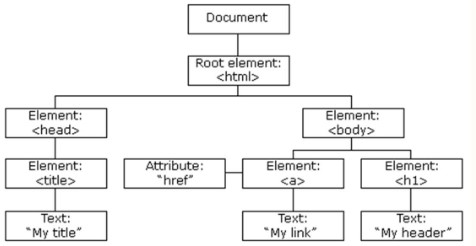
Figure 1 - Document Object Model tree for a webpage
Creating Dynamic Pages with JS
- JavaScript can change all the HTML elements in the page
- JavaScript can change all the HTML attributes in the page
- JavaScript can change all the CSS styles in the page
- JavaScript can remove existing HTML elements and attributes
- JavaScript can add new HTMl elements and attributes
- JavaScript can react to all existing HTML events in the page
- JavaScript can create new HTML events in the page.
Source: W3 Schools
- Finding HTML elements can be done using the following methods
document.getElementById(id)Find element by element iddocument.getELementsByTagName(name)Find element by tag namedocument.getElementsByClassName(name)Find element by class name
- Changing HTML elements can be done by setting the following attributes
element.innerHTML = new html contentChange the inner HTML of an elementelement.attribute = new valueChange the attribute value of an HTML elementelement.style.property = new styleChange the style of an HTML element
- (We can also use the setAttribute method)
element.setAttribute(attribute, value)Change the attribute value of an HTML element
- Adding and deleting elements can be done using the following methods
document.createElement(element)Create an HTML elementdocument.removeChild(element)Remove an HTML elementdocument.appendChild(element)Add an HTML elementdocument.replaceChild(new, old)Replace an HTML elementdocument.write(text)Write into the HTML output stream
JavaScript Form Validation - Client Side Validation
The form code itself is given below
<form name="myForm" action="/action_page.php" onsubmit="return validateForm()" method="post">
    Name: <input type="text" name="fname">
    <input type="submit" value="Submit">

    Email: <input type="text" name="email">
    <input type="submit" value="Submit">
</form>
The definition of the
validateFormfunction is given asfunction validateForm() { let x = document.forms["myForm"]["fname"].value; if (x == "") { alert("Name must be filled out"); return false; } let x = document.forms["myForm"][“email"].value; if (x.search("@") == -1) { alert("Email should have @ in it"); return false; } }
Navigation Systems
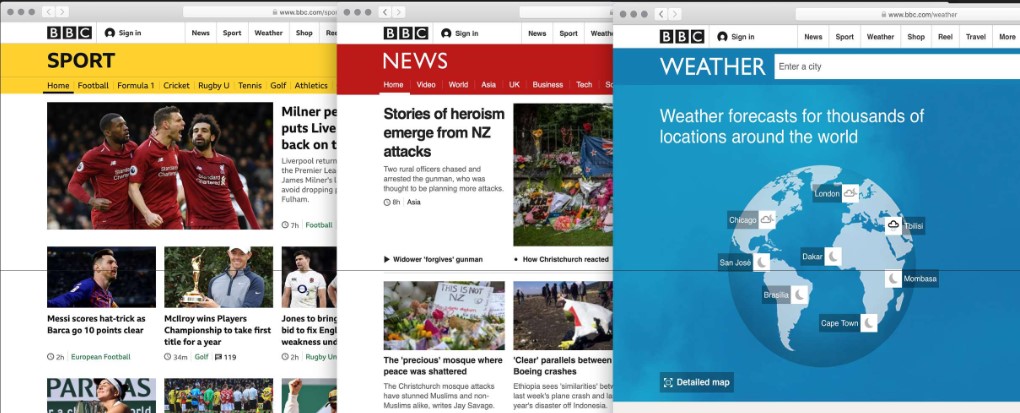
Figure 2 - Related, but unique identities of different sites on BBC's pages.
Types of Navigation
Primary navigationSuch as a nav bar, should be persistent across all pages.Supplementary navigationSuch as a sidebarLocal navigationSuch as links to content within the page, using anchors (e.g., links to key sections of the page.)Breadcrumbs pathwaysSuch categories on a webpage e.g.Computers > Laptops > Dell. Typically appears under the main nav bar of the page.Utility task-basedSuch as search or shopping cart iconFooter navigationLinks to important pages in the footer of a pageGlobal navigationSuch as a nav bar
What Not to Do
Mystery Meat NavigationA visually attractive but inefficient or confusing UI- Obscures navigation
- Forces the user to explore
Image-only Navigation
Good Practice Standards
Use familiar names for links
Clearly distinguish between different types of navigation
Use common positioning, e.g. logo on the top left of the page
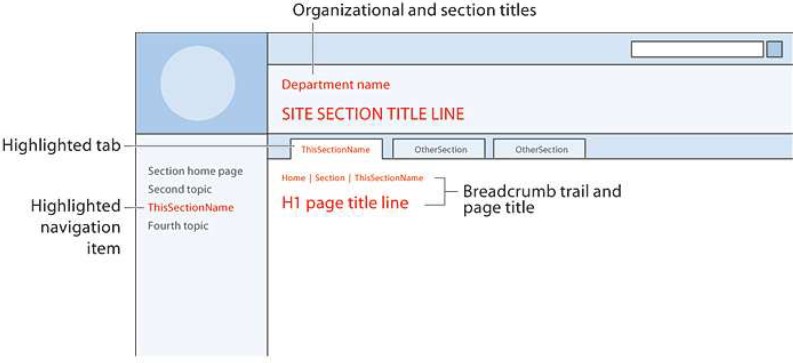
Figure 3 - Typical website layout
All pages of a good website should answer the following questions
- Where am I right now?
- Where can I go?
- Where have I been?
CSS Positioning
HTML elements by default are rendered in the order of the HTML code (document flow).
Use the CSS position property to control flow.
staticpositioning is the default. It’s what you’re used, to and is positioned according to the normal flow of the page- Only offset with margin or padding
relativecan offset with top, bottom, left and right properties- Is positioned relative to its normal position
- Leaves space behind
fixedPositioned relative to the viewport- Stays in the same position regardless of the user’s scroll position in the web browser
- A fixed element doesn’t leave a gap in the page.
absoluteEverything from relative, except is positioned relative to the nearest positioned ancestor (instead of positioned relative to the viewport, liked infixed)- Can put one object on top of each other (stacked)
Use
fixedto create a header that sticks to the top of the webpage, even when scrolling in the web browserUse
absoluteto make a graphic overlap multiple HTML elements (or maybe a drop-down menu)